
Find music on the home page
Find music by mood
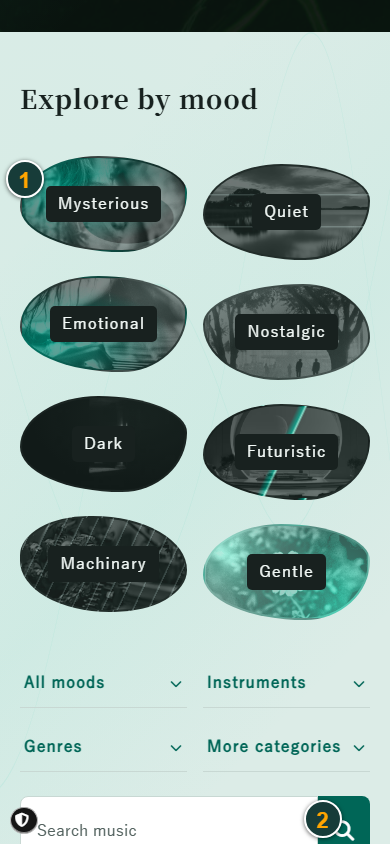
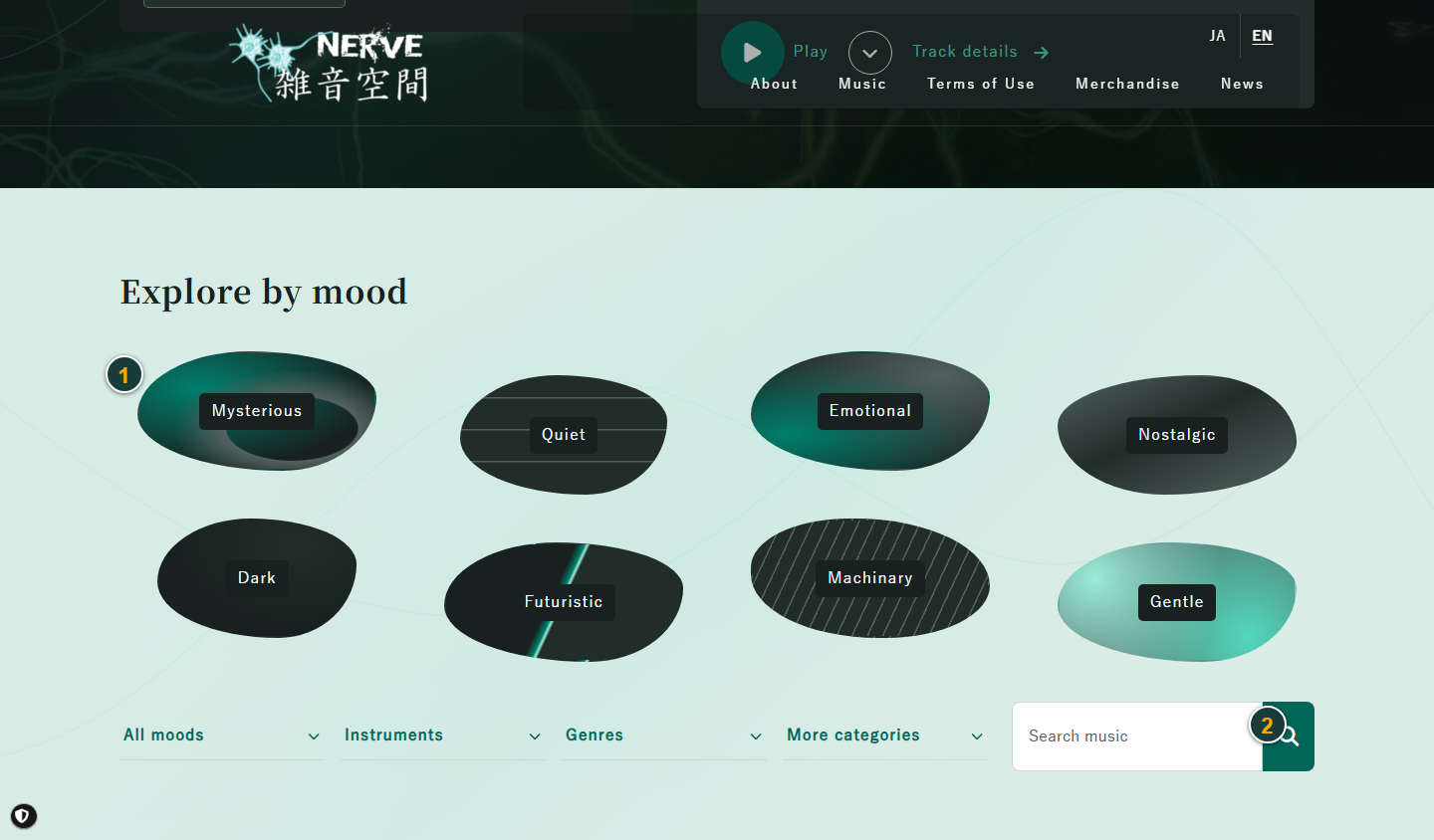
- Choose a mood: See music that matches the feeling you choose.
- Open a category: Explore more moods, instruments, genres, and other groups.
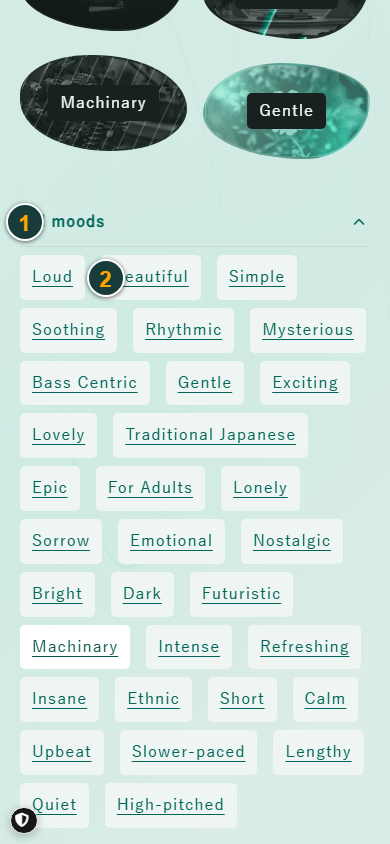
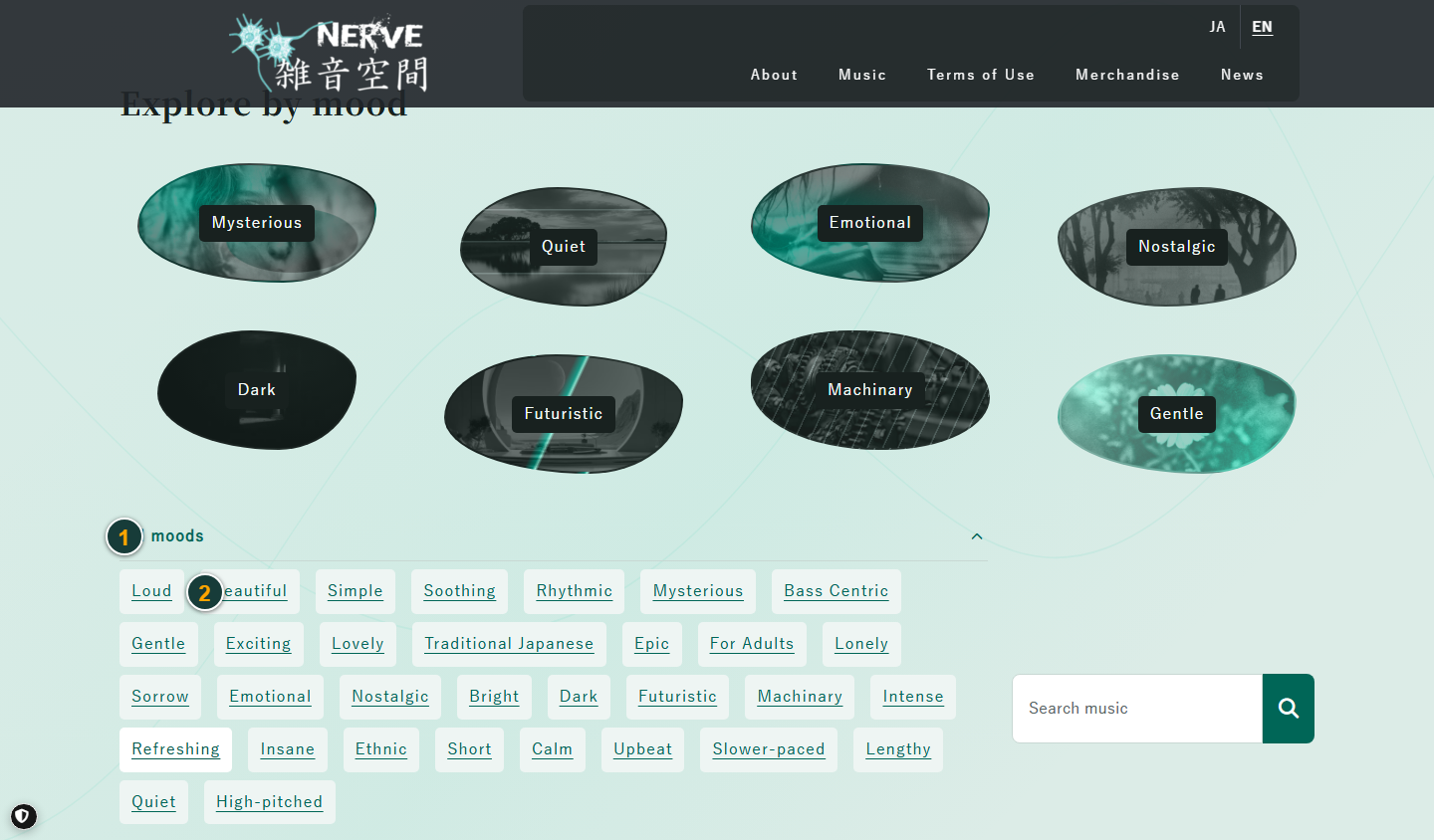
- All moods: Open the full list of feelings you can choose from.
- Choose a mood: For example, select “Beautiful” to see tracks with that mood.
“Instruments” groups music by sounds such as piano. “Genres” groups it by styles such as rock. “More categories” includes speed, length, series, file format, and other details. Open a heading and choose one item.
Find music by words
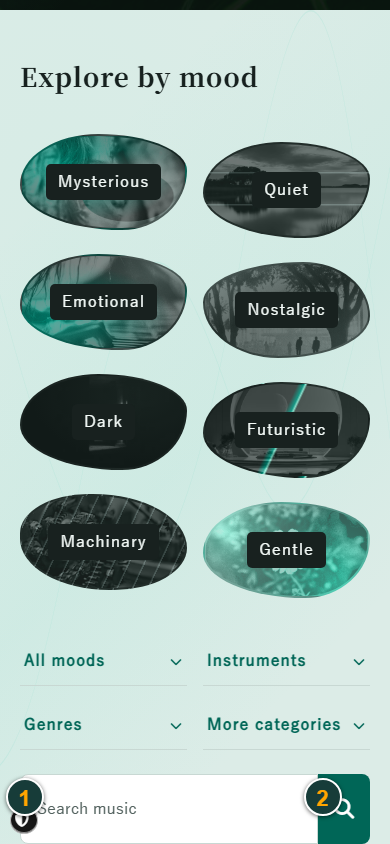
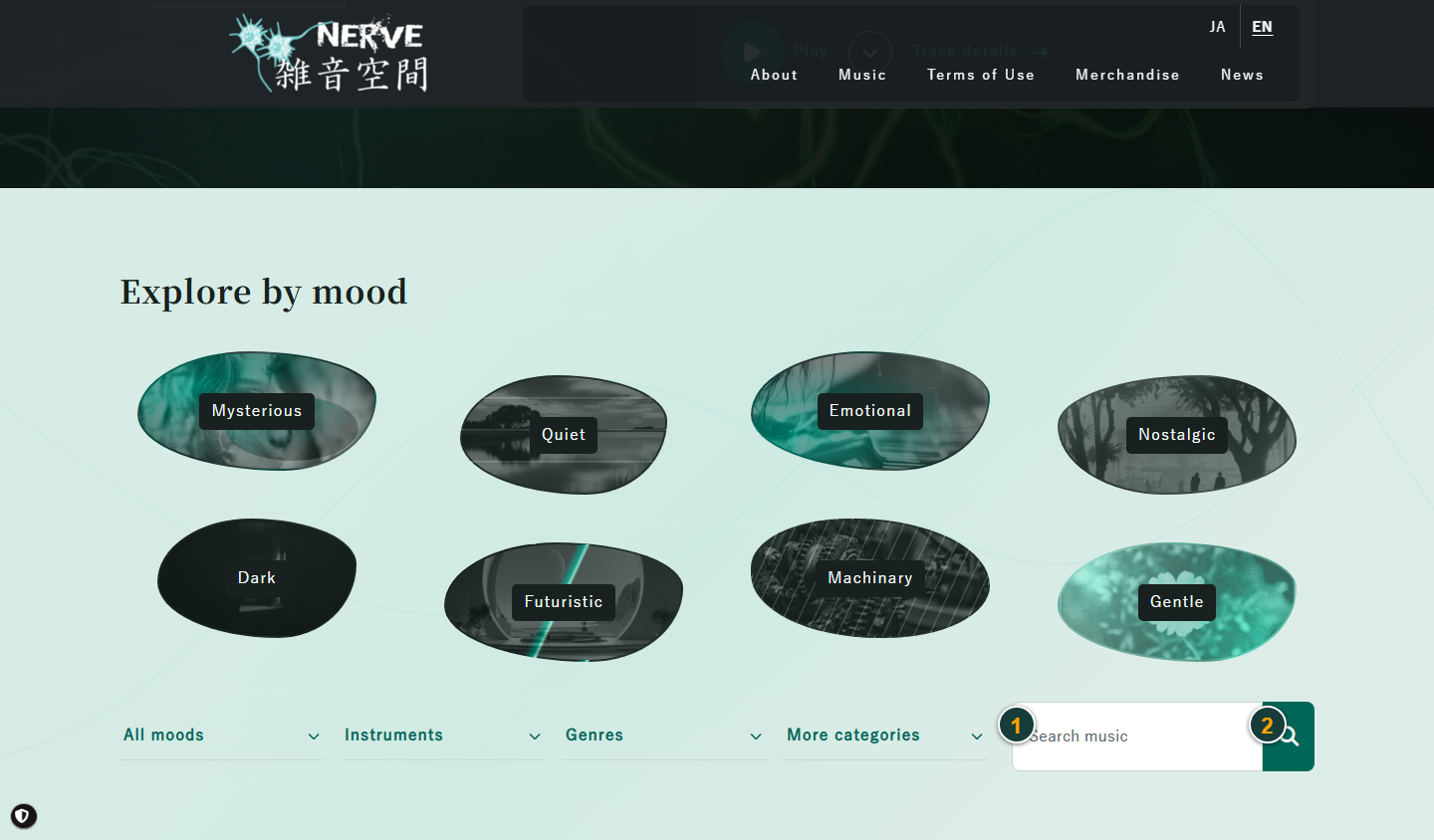
- Enter a word: Type a song title or a word you want to find.
- Search: Find music that matches your words.
Find music in the music list
Search music by keywords
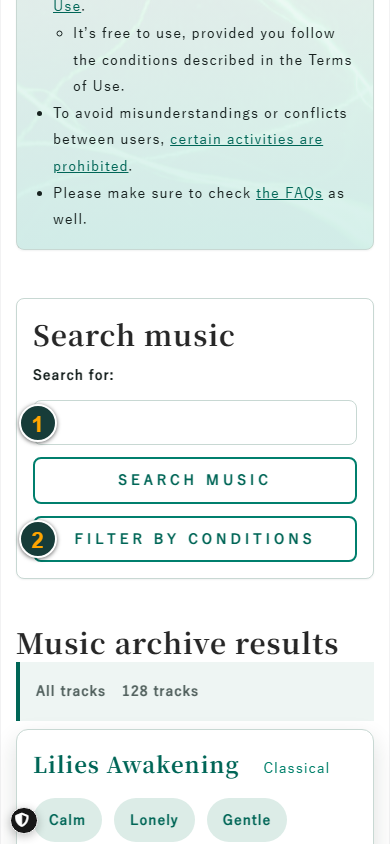
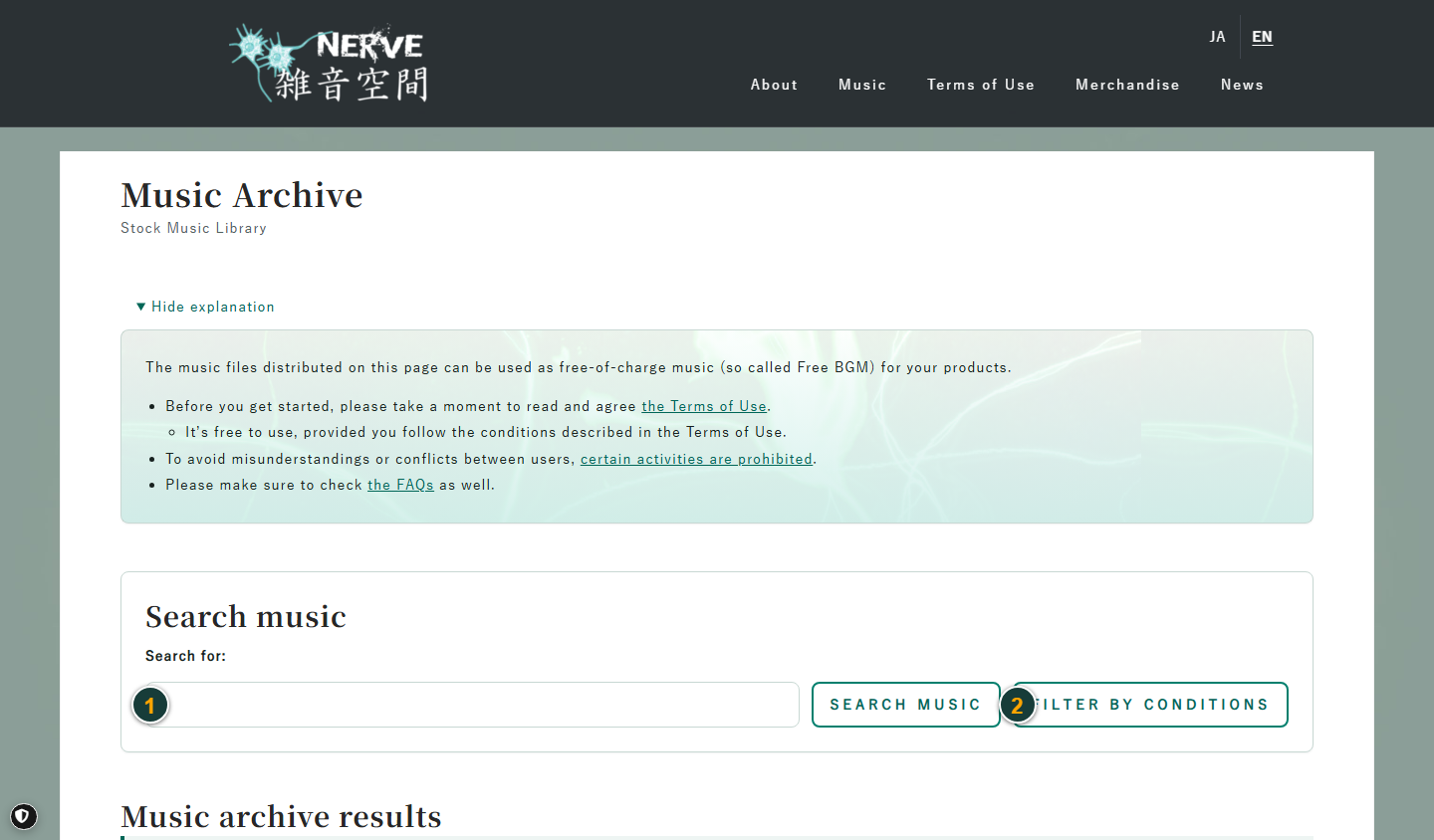
- Search: Enter words and select “Search music” to see matching tracks.
- Filter by conditions: Choose a genre, mood, instrument, track length, or another detail.
Filter music by conditions
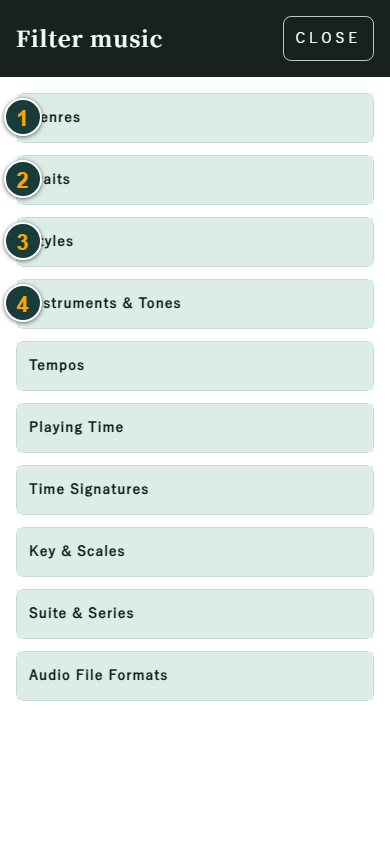
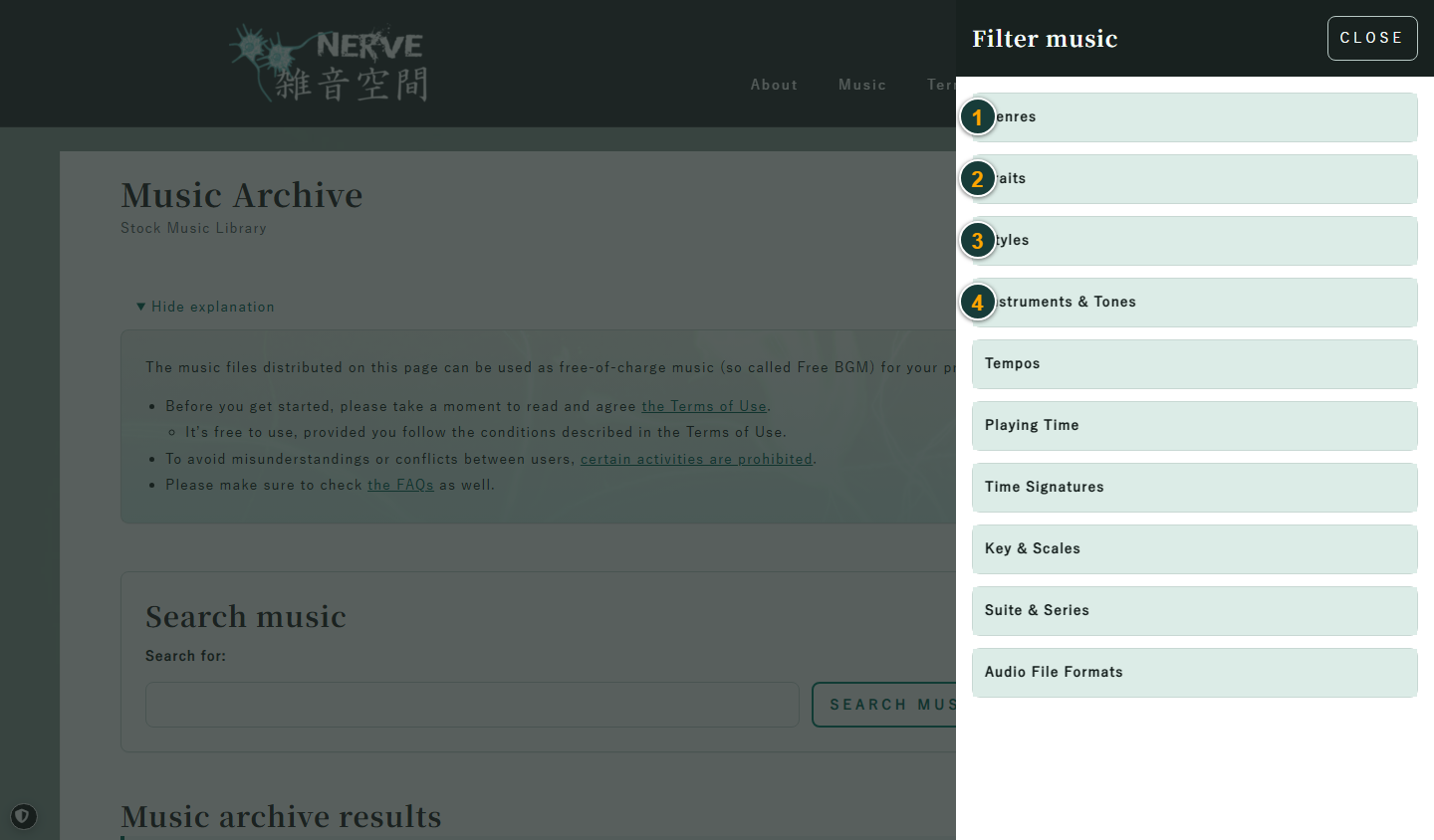
Select “Filter by conditions” to open the groups. Select a group name to see its choices.
In the picture, 1 is music style, 2 is how the music feels, 3 is the kind of track, and 4 is the instruments or sounds used.
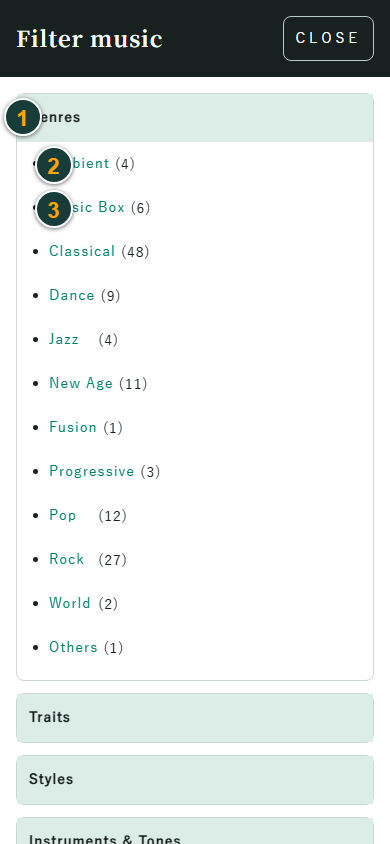
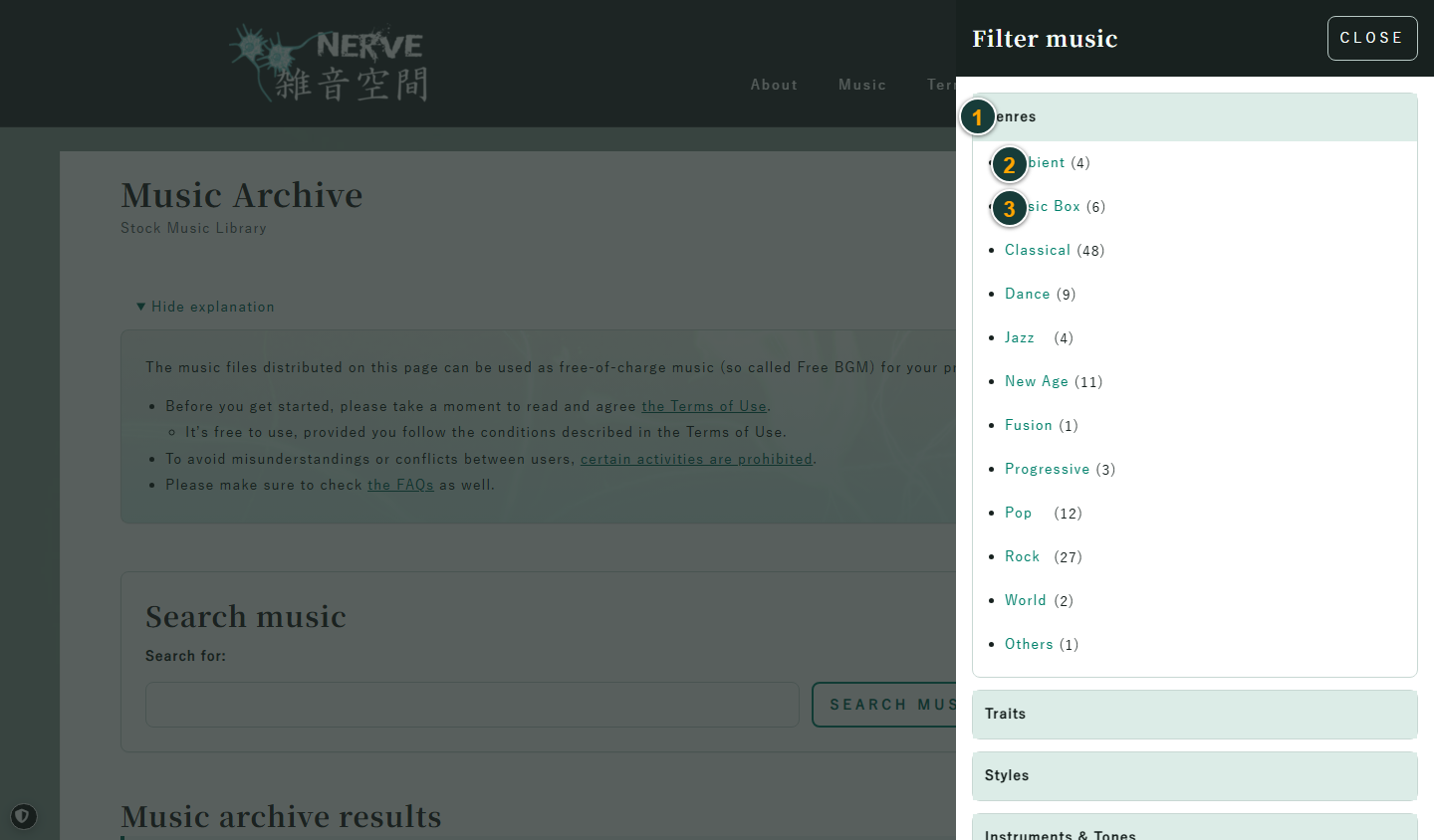
- Group name: “Genres” is open in this example.
- Choice: Select it to see matching tracks. The number beside it shows how many tracks there are. Choose one item at a time.
- Another choice: Select a different item when you want another kind of music.
These are the groups you can use. You only need to use the ones you find useful.
| Group | What it means |
|---|---|
| Genres | Styles such as rock or jazz |
| Traits | Feelings such as quiet or bright |
| Music type | Kinds of tracks, such as music without singing |
| Instruments | Sounds such as piano or guitar |
| Tempo | How fast the music is |
| Length | About how many minutes it lasts |
| Time signature | How the beats are grouped |
| Key and mode | A way to group tracks by how their notes sound together |
| Series | Tracks that belong together |
| File format | File types such as MP3 or MIDI |
The music list page
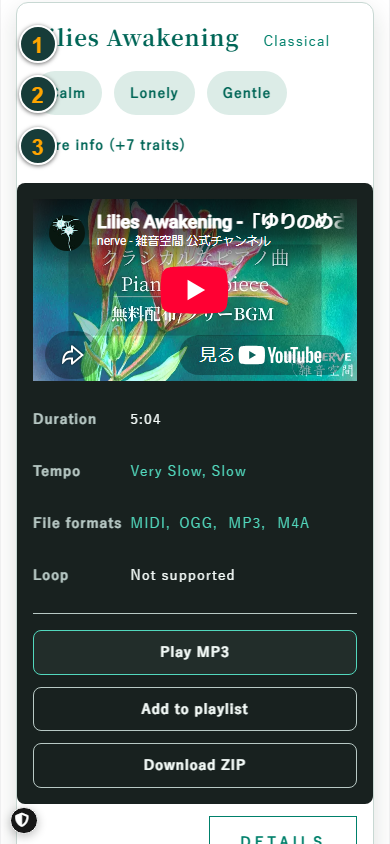
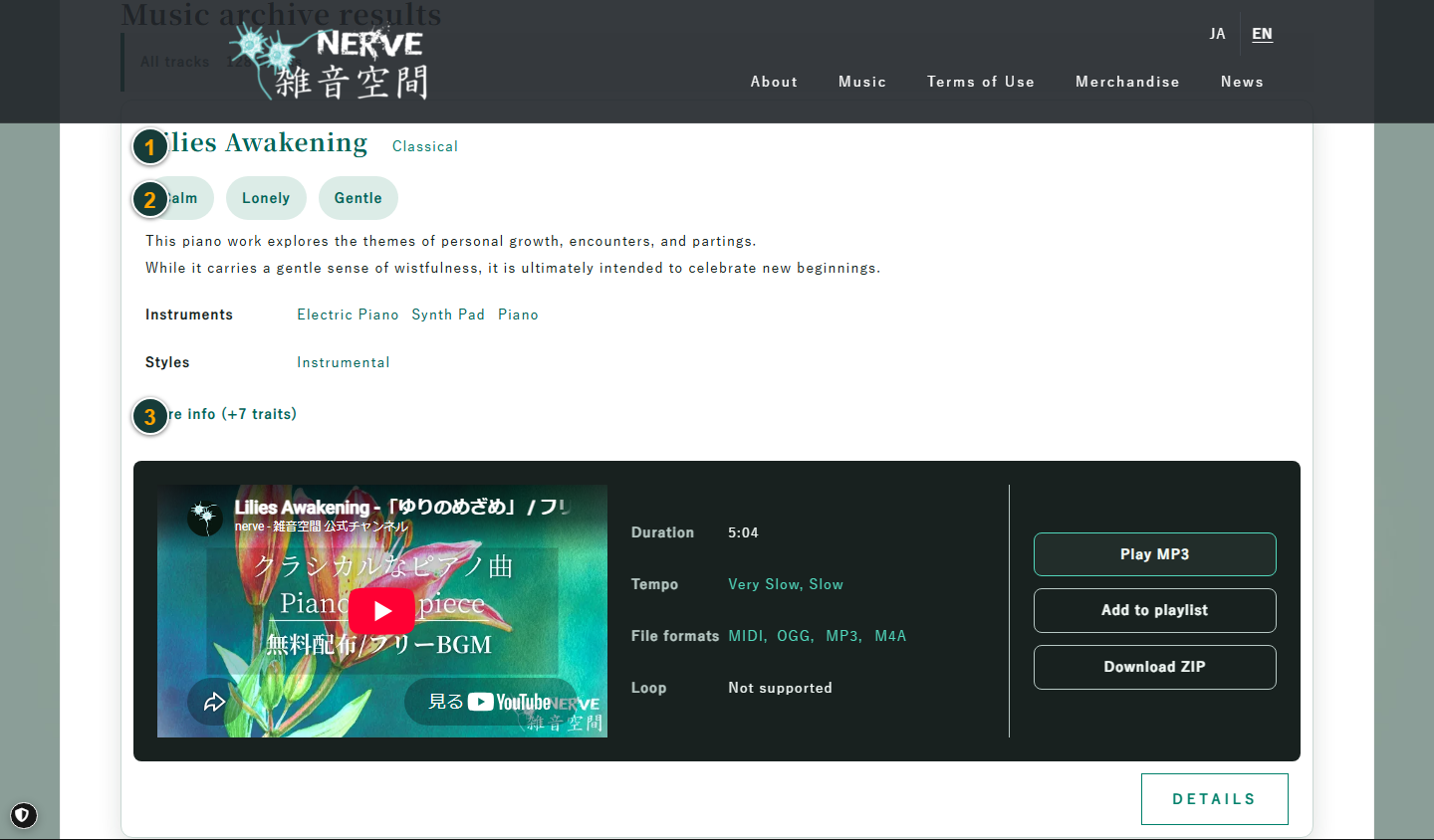
- Track title: Open a page with more details about the track.
- Mood: See other tracks with the same mood.
- More info: Show extra details about the track.
When available, use “Play MP3” to listen, “Add to playlist” to keep a track in your list, or “Download ZIP” to save its files.
How to use the audio player and playlist
Audio player
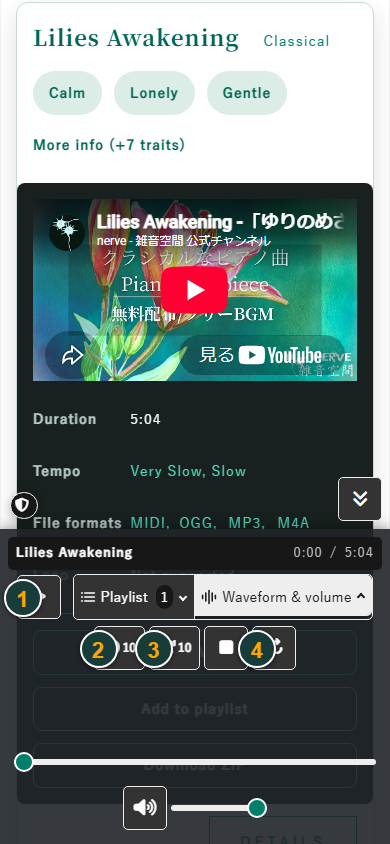
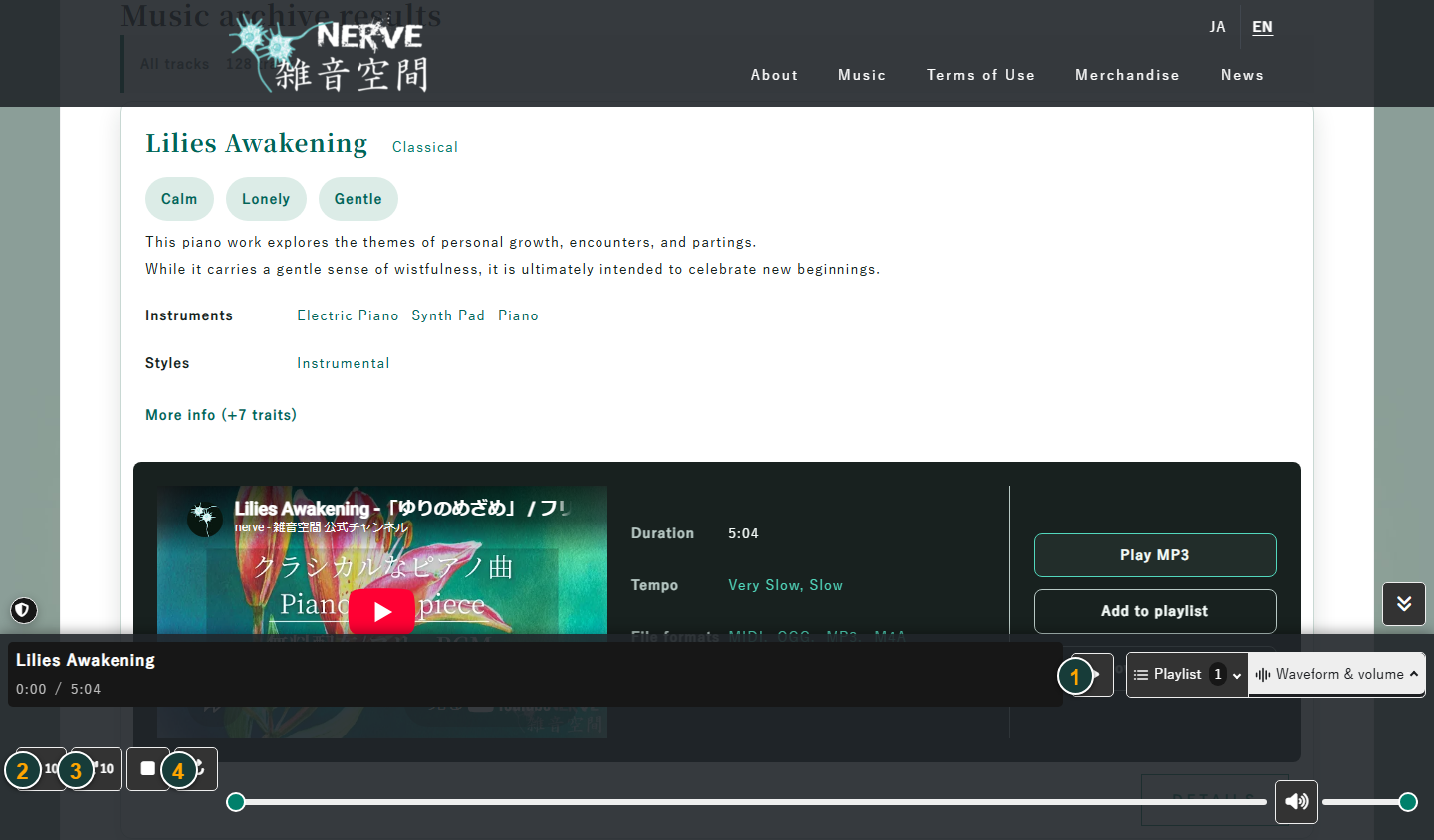
- Play / pause: Start the track or pause it.
- Back 10 seconds: Move to an earlier part of the track.
- Forward 10 seconds: Move ahead in the track.
- Repeat: Switch between no repeat, repeating one track, and repeating the whole list.
Move the line below the buttons to choose where the track plays. Use the speaker button and line to change the volume. On some phones, use the phone’s volume buttons.
Playlist
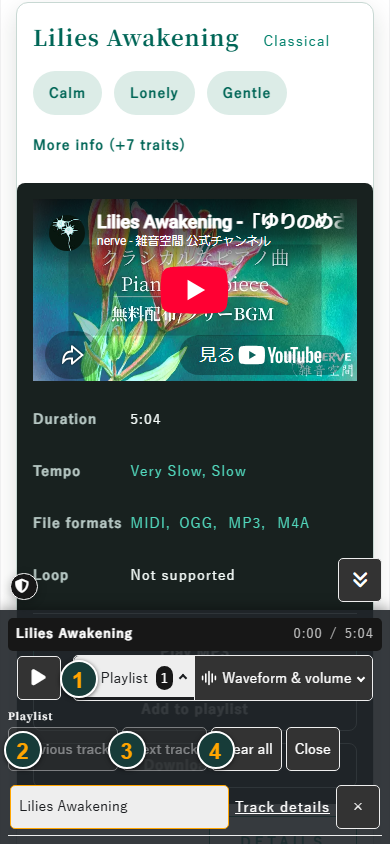
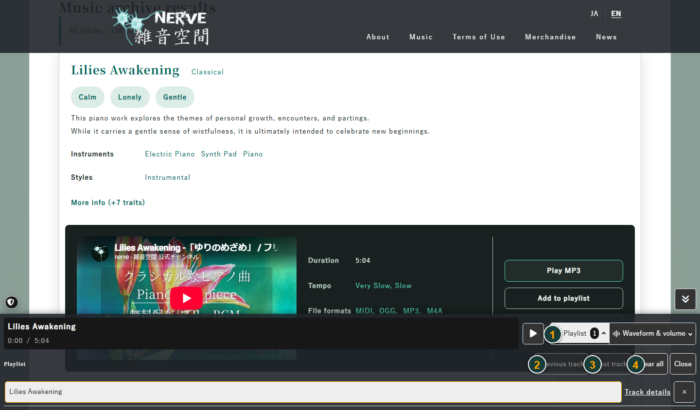
- Playlist: Open the list of tracks you added.
- Previous track: Go to the track before this one.
- Next track: Go to the next track.
- Clear all: Remove every track from the list.
Select a track in the list to choose it. Select “×” to remove only that track.